Exclude URL Query Parameters in GA4

Exclude URL Query Parameters in Google Analytics 4 – Including (not set) and Landing Pages
URL query parameters can create clutter in Google Analytics reports, making it difficult to analyze data accurately. In Universal Analytics (GA3), users had the option to exclude query parameters from their reports, but this feature is not available by default in Google Analytics 4 (GA4).
However, there is a workaround that involves using Google Tag Manager (GTM).
In this article, we will:
- Provide a step-by-step guide on how to exclude URL query parameters from GA4 reports using GTM.
- Include a list of the most common URL parameters that users might want to consider excluding.
- Discuss what (not set) is and how to fix it.
- Have specific instructions on how to clean up your landing page reports.
- Give brief directions for those using GTAG at the end of the article.
Why URL Query Parameters Can Be a Problem
URL query parameters can be useful in certain situations, such as tracking successful form submissions or identifying the source of a visitor. However, irrelevant dimensions and metrics can clutter Google Analytics (GA) reports and make it difficult to identify meaningful insights.
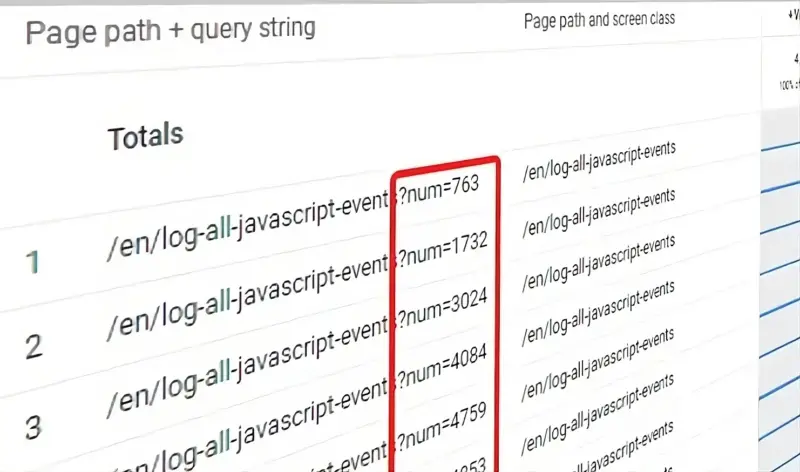
- Difficulty with analyzing the All Pages report. One issue with URL query parameters is that they can break apart pages and make them difficult to analyze in the All Pages report. For example, if two visitors land on the same page but have different query parameter values, GA will treat them as separate pages. This can lead to inaccurate data and skewed analysis.
- High cardinality. Another problem with URL query parameters is high cardinality. Cardinality refers to the number of unique values that a dimension can have. When a dimension has a high cardinality, it can cause performance issues and slow down GA reports. URL query parameters can contribute to high cardinality, especially when they contain unique values such as email addresses.
- Irrelevant URL query parameters. Certain URL query parameters are not relevant to the analysis being performed and can clutter GA reports. For example, parameters used by third-party tools like Facebook or Mailchimp may have no direct benefit to GA analysis, but can still be included in the URL.
To address these issues, GA provides the “Exclude URL Query Parameters” feature. This feature allows users to remove unwanted query parameters from their reports while still keeping important ones. By excluding irrelevant parameters, users can improve the accuracy and relevance of their analysis.
Note: The use of URL query parameters is subject to GDPR regulations. If a parameter contains personal information such as email addresses, it may be necessary to exclude it from GA reports to comply with GDPR requirements.
Clean Up Landing Page Reports by Excluding URL Query Parameters in GA4
In Google Analytics 4 (GA4), landing page reports can provide valuable insights into the performance of your website. They help you understand which pages are attracting the most visitors and how visitors are engaging with your content. However, sometimes the landing page reports can be cluttered with URL query parameters, which can make it difficult to analyze the data effectively.
URL query parameters are the extra information that is added to a URL after the question mark (?). They are used to pass information between web pages and can include things like campaign tracking codes, session IDs, and user IDs. While they are useful for tracking purposes, they can also make your landing page reports messy and difficult to analyze.
To exclude URL query parameters from your landing page reports in GA4, follow these steps:
Step 1: Identify the query parameters to exclude. The first step is to identify the query parameters that you want to exclude from your landing page reports. Common query parameters that you may want to exclude include campaign tracking codes (e.g. utm_source, utm_medium, utm_campaign), session IDs, and user IDs.
Step 2: Create a filter. Once you have identified the query parameters to exclude, you need to create a filter in your GA4 account. To do this, go to the Admin section of your account and select the appropriate property and view. Then, click on Filters and create a new filter.
Step 3: Set up the filter. In the filter setup, choose the type of filter you want to create. In this case, we want to exclude URL query parameters, so choose the “Exclude” filter type. Then, choose “Request URI” as the filter field. Finally, enter the regular expression that will match the query parameters you want to exclude.
For example, if you want to exclude all query parameters that start with “utm_” (which are commonly used for campaign tracking), you would enter the following regular expression: ^(.)(?|&)(utm_[^&]).*$
Step 4: Verify the filter. Once you have set up the filter, it is important to verify that it is working correctly. To do this, go to your landing page report and check whether the URL query parameters have been excluded. You should see a cleaner report with only the landing page URLs.
What is (not set) and How To Fix it in GA4
(not set) appears in Google Analytics 4 if a dimension that you’re using in the report does not contain a value. It acts as a placeholder.
This can be a problem when (not set) appears unexpectedly. For example, the landing page is (not set) in Google Analytics 4 if a session does not have a page_view event that tracks the page_location parameter.
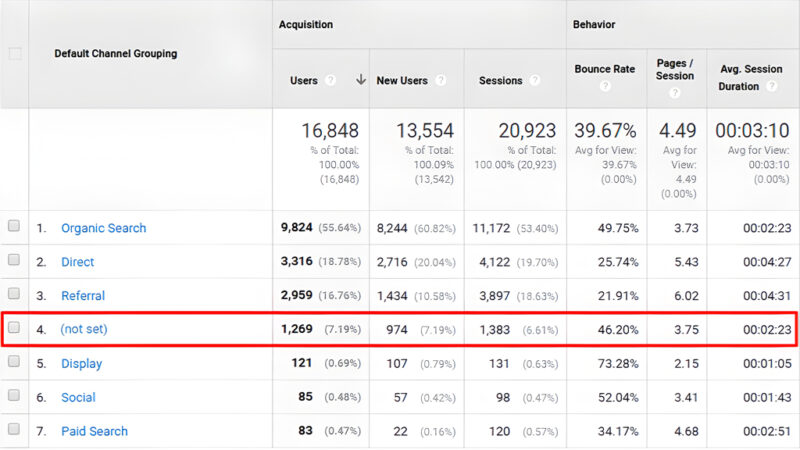
No page view equals no landing page. This can happen if a visitor opens a website in a browser tab, leaves it open for 30 minutes or more, then comes back to the laptop and does something without going to another page or reloading the page. This starts a new session with no pageviews, resulting in (not set) landing page.
To reduce the impact of this problem, you can extend the default session duration by going to GA4 > Admin > Data Streams > Select web data stream > Configure tag settings > Show all > Adjust session timeout.
This will not completely solve the (not set) landing page problem, but it should reduce the scope of the problem over time to some extent.
Identifying URL Query Parameters That You Want to Exclude
To exclude URL query parameters in Google Analytics, you will need to do the following:
Step 1: Identify which query parameters you want to exclude. This can be done by creating a custom report in the Free Form Exploration section of Google Analytics.
Step 2: To create the report, go to Explore > Blank and import the Page path + query string or Page location dimension and the Views metric. Double-click on both the dimension and metric to add them to the “Rows” and “Values” sections of the Variables tab.
Step 3: Next, filter down the report to show only those URLs that contain any query parameter. This can be done by adding a filter in the “Filters” section with the condition Page Path + Query strings contains ?. This will give you a report of URLs where any query parameter is present.
Step 4: You can then choose to show more rows and write down the parameters you no longer wish to see. This list will be later used to exclude the query parameters in Google Analytics.
Identifying the URL query parameters that you want to exclude is a crucial step in ensuring accurate tracking of user interactions on your website. By excluding irrelevant query parameters, you can focus on the data that is most important to your business goals.
Use a Custom Template
To exclude URL query parameters in Google Analytics 4, users can utilize a custom template in Google Tag Manager. This template, called “Trim Query,” was created by Ayudante and can be found in the Variable Templates section of the Search Gallery.
By adding this template to their workspace, users can utilize custom JavaScript and regular expressions to exclude specific query parameters from their GA4 reports.
This can be particularly useful for cleaning up URLs and improving the accuracy of analytics data. It is important to note that this method requires both GA4 and GTM to be installed.
Create a Variable That Excludes Query Parameters
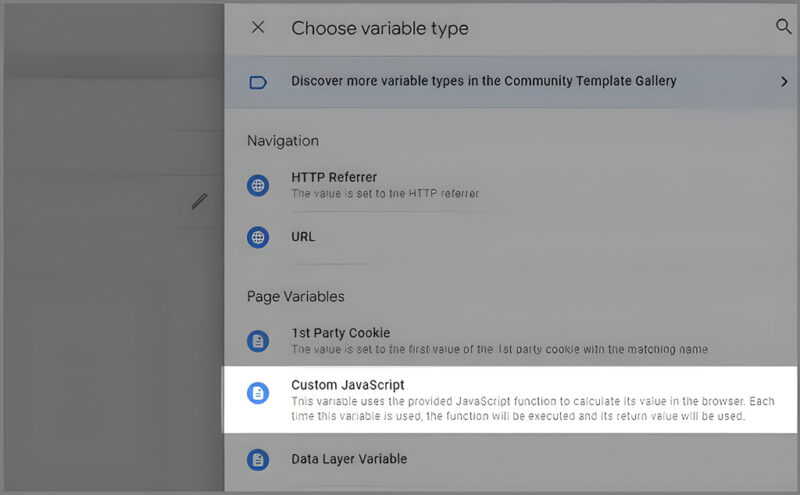
To exclude URL query parameters in Google Analytics 4, a custom JavaScript variable must be created. The variable will remove specific parameters from the page URL and return a cleaner URL as its value.
Step 1: To create the variable, go to Variables > New > Variable configuration and select “Trim Query” as the variable type. Select Page URL as the Target URL and keep all other settings as they are.
Step 2: Next, list all the query parameters that need to be excluded. This can be done by referring to the list prepared in the chapter “Identifying URL Query Parameters That You Want to Exclude”. List each parameter in a separate row.
Step 3: Once the list is complete, save the variable and name it something, such as Page URL Excluding Unwanted Query Parameters. It’s important to note that this variable does not affect the page URL that visitors see in the browser address bar.
Step 4: This custom JavaScript variable can now be used in GA4 tags to exclude specific query parameters from the page_location field. By excluding query parameters, the data collected in Google Analytics will be more accurate and relevant.
Update the Google Tag
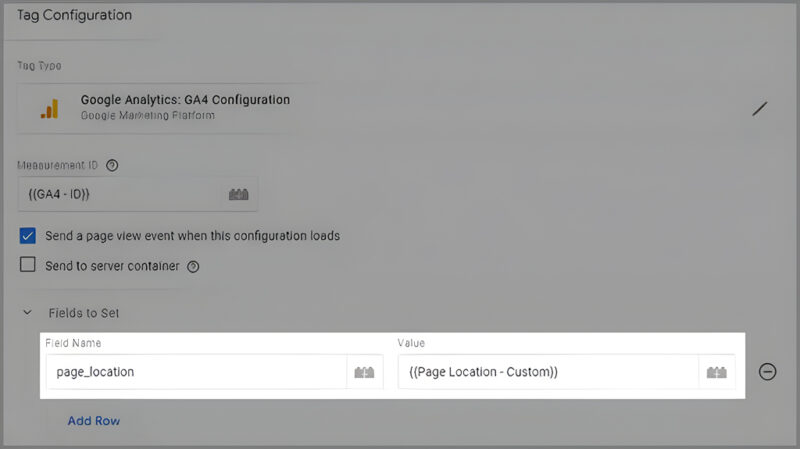
When implementing Google Analytics 4, certain elements like page_location are automatically tracked. However, it is possible to overwrite this feature. In order to do so, follow these steps:
Step 1: Navigate to the GA4 configuration tag in the admin panel.
Step 2: Add a new parameter called “page_location” and set the custom variable as its value.
Step 3: Save the tag once you have made these changes.
For single-page applications, it is recommended to set the same page_location parameter in all GA4 event tags as well. Once you have made these changes, save them and the configuration tag will be updated accordingly.
Test the Setup
To ensure that everything is working properly, it is important to test the setup.
Step 1: Click on the Preview button located at the top right corner of the GTM interface to enable the Preview mode.
Step 2: Enter the URL of your website and include several query parameters that you have excluded, along with some parameters that should still be displayed in the reports.
Step 3: All query parameters should be connected with “&”. For example, “yoursite.com?fbclid=12345&xyz=888”. Click Connect.
Step 4: Once your GA4 tags have fired, go to “Google Analytics > Admin > Debugview” and find your device. Check the most recent events and verify that their “page_location” value does not contain the excluded parameters. This ensures that the excluded parameters are not being tracked in the GA4 reports.
Step 5: If everything is working fine, publish your GTM container by clicking the SUBMIT button and completing all the other necessary steps. You can then verify the results by checking the “All Pages” report in Google Analytics and exporting the data to a spreadsheet.
This will provide you with the necessary metrics to evaluate the effectiveness of your GA4 reports.
What if You Use GTAG?
If you use Google Tag Manager (GTM) to track your website’s data, you can exclude unwanted URL parameters by preparing a list of these parameters and providing them to your developer.
The developer will then need to write custom code that sends the page_location parameter in the GTAG code without the unwanted parameters. It is important to note that this list may need to be updated in the future, and the developer will need to include any updates in the code. This approach is specific to GTM and does not apply to Universal Analytics.
Popular Query Parameters You Might Want to Exclude
It is a good practice to exclude common and popular query parameters from your GA4 reports. Although this list is not definitive, it can help you avoid unnecessary data in your reports. Some of the popular query parameters you might want to exclude are:
- gtm_debug (Google Tag Manager)
- fbclid (Facebook)
- mc_cid (Mailchimp)
- mc_eid (Mailchimp)
- __s (Drip)
- __hssc (HubSpot)
- __hstc (HubSpot)
- __hsfp (HubSpot)
- _hsenc (HubSpot)
- _ke (Klaviyo)
- hsCtaTracking (HubSpot)
- igshid (Instagram)
- ml_subscriber (MailerLite)
- ml_subscriber_hash (MailerLite)
- msclkid (Microsoft)
- omnisendContactID (Omnisend)
- s_cid (Adobe)
- ef_id (Adobe)
- twclid (Twitter)
By excluding these query parameters, you can have a cleaner and more accurate view of your website’s performance. However, it’s important to analyze your URLs and determine which parameters are necessary for tracking and which ones can be safely excluded.
Alternative: Excluding All Query Parameters Except What You Allow
For those who do not want to perform regular maintenance, there is an alternative to excluding query parameters. The Trim Query template provides a “white list” feature that allows users to include only the parameters they want to see and remove everything else.
Although this method simplifies the process, it is crucial to exercise caution when using it — any newly added critical query parameters will not be reflected in the reports or tracking.
To ensure that important parameters are not excluded, users should always add the following variables to the white list:
- utm_medium
- utm_source
- utm_campaign
- gclid
- dclid
- _gl
- _ga
By using this method, users can exclude all query parameters except those they want to allow, providing a more streamlined and organized report. It is important to note that this method should only be used after careful consideration of the potential risks and benefits.
Final Words
While Google Analytics 4 does not currently offer a built-in feature to exclude query parameters, there is a workaround available to still have cleaner URLs in GA4 reports.
This implementation, however, will only apply to future data, and your historical data will still contain unwanted URL query parameters.
It is important to note that if you use Google Analytics 4 to send data to a server-side endpoint and then send it to Facebook Conversions API, the method explained should not be used, as it will prevent fbclid from being sent to Facebook.
Overall, it is best practice to exclude query parameters in order to gain more accurate insights from your data in Google Analytics 4. While a built-in feature may become available in the future, the current workaround is effective in achieving cleaner URLs.
FAQ
How do you redact data in GA4?
To redact data in GA4, navigate to the Admin panel of your GA4 property and select the desired Web Data Stream. In the Events section, click “Redact data” and turn on the “Data redaction from URL query parameters” option.
How do you exclude query parameters in GA4?
To exclude query parameters in GA4, you can use the “Trim Query” variable type in Variables > New > Variable configuration and select “Page URL” as the Target URL.
How to strip query parameters out of URL GA4?
To strip query parameters out of a URL in GA4, you can use the “Data redaction” feature for query parameters. Define the query parameters you want to redact and let GA4 redact their values.
Can we remove query params from URL in GA4?
Yes, we can remove query parameters from a URL in GA4 by using the “Data redaction” feature for query parameters.
Why exclude URL query parameters?
Excluding URL query parameters can help to remove sensitive or irrelevant data from your GA4 reports, making them more accurate and easier to analyze.
What is the difference between query and params in URL?
The difference between query and params in a URL is that the query is a part of the URL that contains data that is passed to a web application or server as a key-value pair, while the params are additional parameters that can be added to a URL to provide more information about the request.
We’re Here to Help
Need help with GA4 and understanding your data? Our team can uncover insights to help you make better business decisions. Contact us for a digital strategy consultation.