
How to Create a Settings Schema for a Drupal Custom Module

As the Web Production Manager at SiteCrafting, I face a variety of challenges on a daily basis. This is one of the things I love most about my job, as it forces me to think logically and creatively solve problems. I am constantly working on new projects that involve learning new technologies and refining my development skills. My experience with .NET, PHP, and open-source development allows me to find the best solution to meet the needs of clients, no matter what the requirements may be.
This document solves the issue where a developer would need to run PHPUnit tests. In order to run a test on a custom module, PHPUnit requires an install file and matching schema. The original genesis was the need to develop custom Drupal modules for a client — a Conference Scheduler and a Podcast Manager — where they can have one or more podcasts with each podcast having a list of associated episodes.
Here is a step-by-step how-to on creating a setting for a custom module and then creating the related schema and install files. For clarity, the instructions stay clear of additional information that can be added to a schema file.
Requirements
We will start with a requirement of a simple custom module with one simple entity and configuration setting.
Module Name: My Movies
Entity Name: Movie
Setting: Language options
Getting Started
-
Install Lando
-
How to setup a Vanilla Drupal 9 install
This article uses Lando to create the development environment, if you want to follow along you could install it or try to follow by setting up your own development environment.
After installing Lando, don’t run the destroy command, lando destroy -y.
You may need to add a PHP version to the lando.yml file since Drupal 9 drush package requires PHP 8+.
Example of updated lando.yml file:

Custom Module
Generate Module
We’re going to use drush commands to create a custom module and entity.
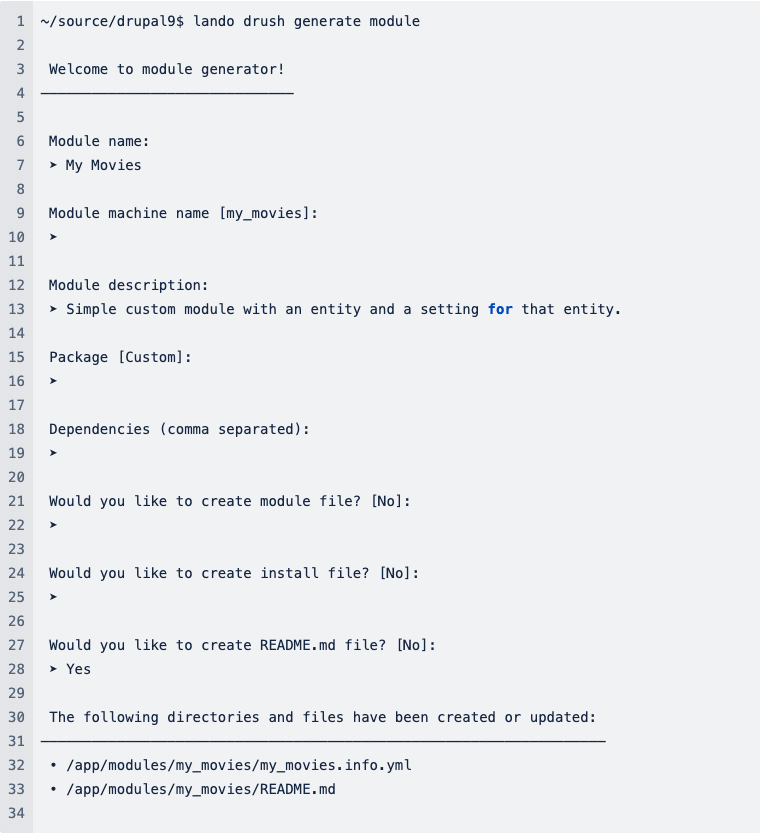
Generate Entity
It is important to notice that the Module machine name is set to my_movies, this will add to your module created above and shows how you can add other entities to your custom module. The Entity type label is used by drush to generate machine names for your new entity.
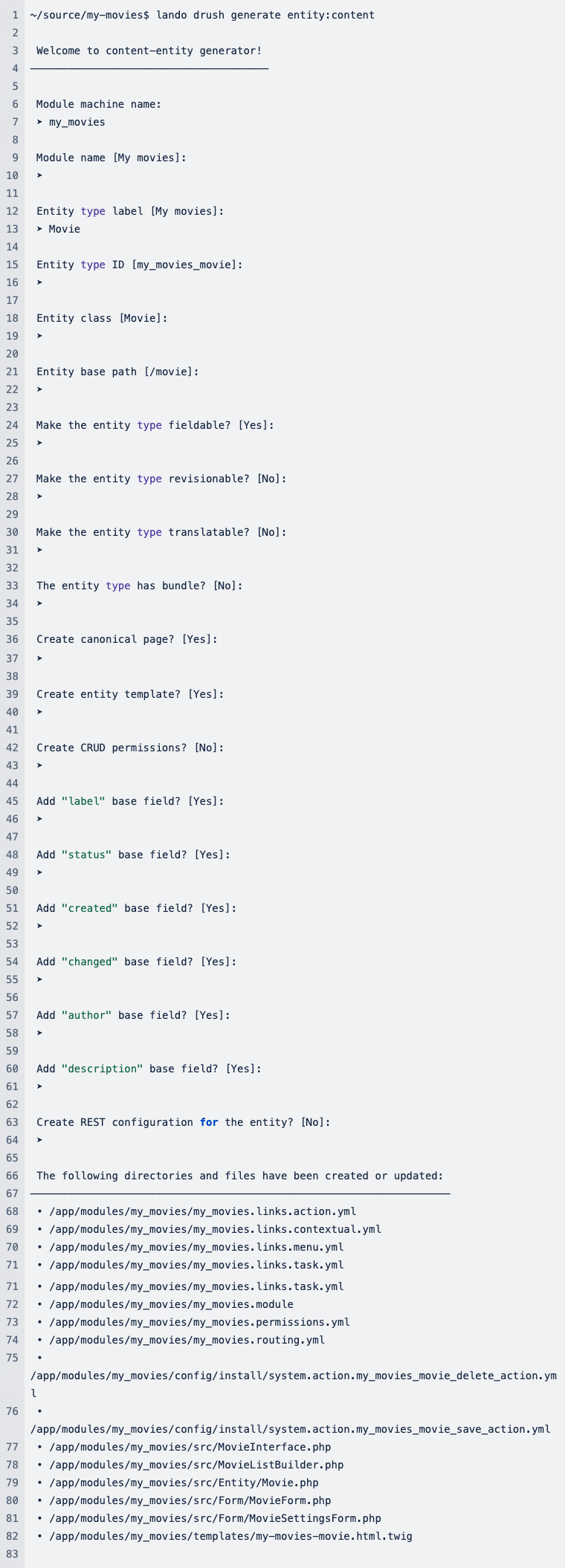
Update the Settings Form
We need to add the configuration setting to save a list of language options.
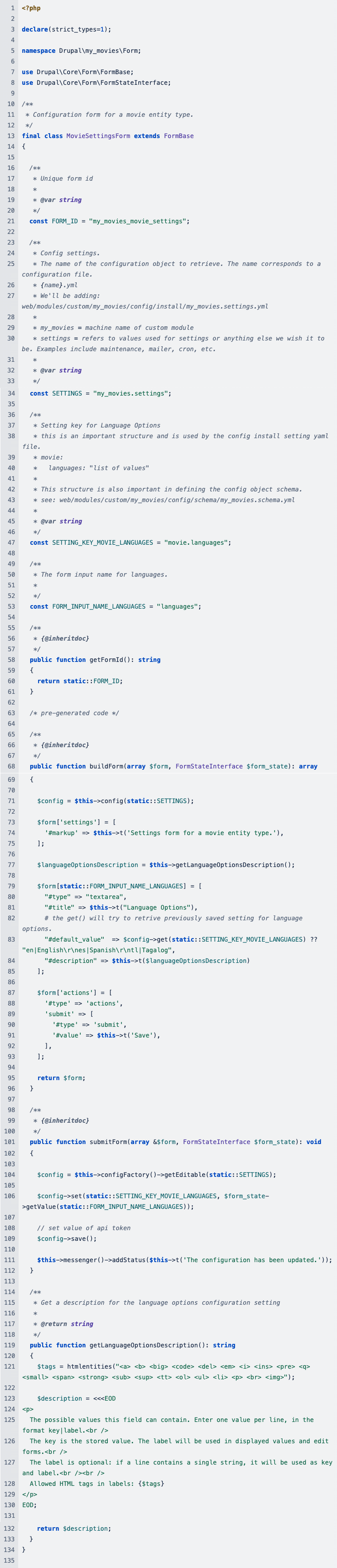
Edit: modules/my_movies/src/Form/MovieSettingsForm.php
We are going to add the constants to the form class and each of these constants has comments to explain their usage. Then we update the form to display the language options textarea and save the setting configuration.
Configuration Files
The configuration files are not essential for the custom module to work, but we are going to add an install file and schema file. The schema file is used by Drupal for translations and if you are using PHPUnit for functional testing. If you do not have a schema file and you are trying to test the movie language option settings, you will get an error.
Install File
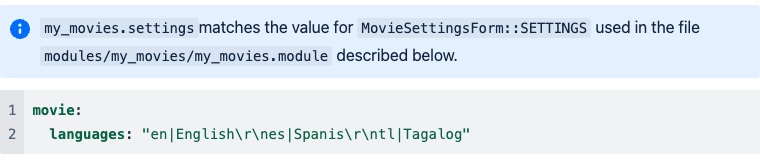
The install file will set the initial language options when the custom module is installed.
Create the file: modules/my_movies/config/install/my_movies.settings.yml
Definitions
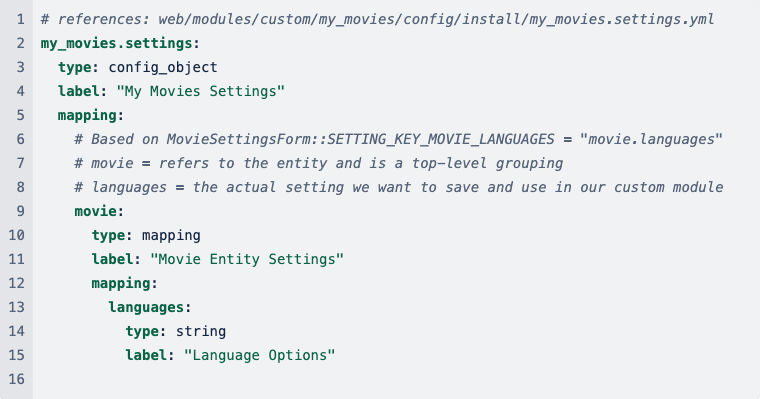
movie: the entity name
languages: the setting for saving a list of languages
Schema File
The schema describes the custom module’s settings and is needed by PHPUnit.
Create the file: modules/my_movies/config/schema/my_movies.schema.yml
Add the following content:
Update the Module File
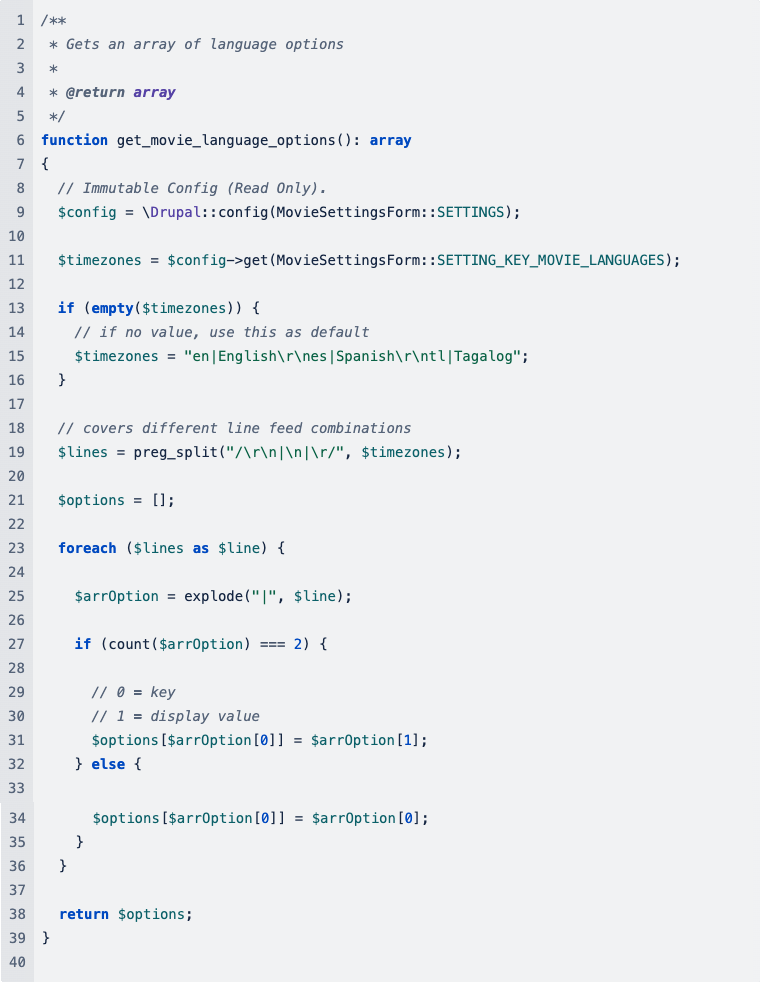
To get a list of language options we can use with a select box; we will add a function the Module file.
Edit the file: modules/my_movies/my_movies.module
We need to reference the Settings Form and Movie entity, start by adding a use statement.

Now we will create a function that will pull the setting data and create a useful array. The function could be added near the end of the file.
Update the Movie Entity
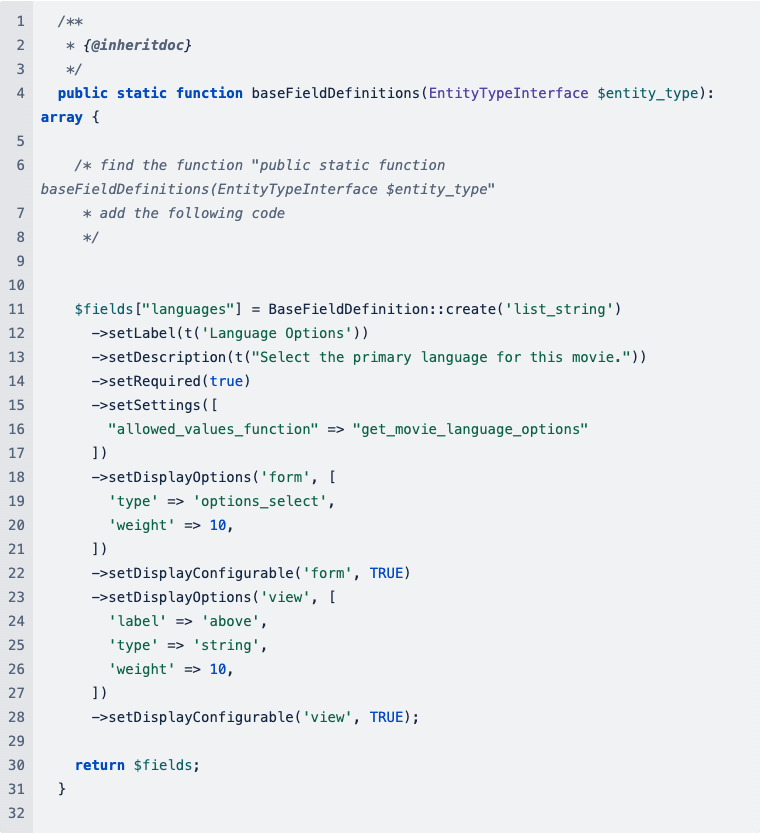
We are going to add a custom base field to select the primary language of the movie and it’s going to use the language options setting to populate the drop-down menu.
Edit: modules/my_movies/src/Entity/Movie.php
You can place this code just after the code for $fields['changed'].
The important code is: setSettings(["allowed_values_function" =>"get_movie_language_options"])
This tells the code to get the options by using the function we created above in the `my_movies.module` file: get_movie_language_options()
Installing the Module
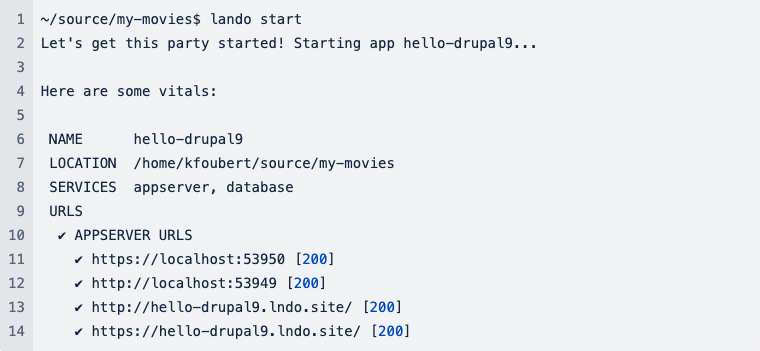
Let’s make sure the site is running, if you’re using Lando you can use the following command:
Command Line
We can run the following command line to install the module.

Drupal Admin Center
We can install the module through the web application: Administration → Extend → List. Look for My Movies check the module and at the bottom of the page click Install button.

Check your setting
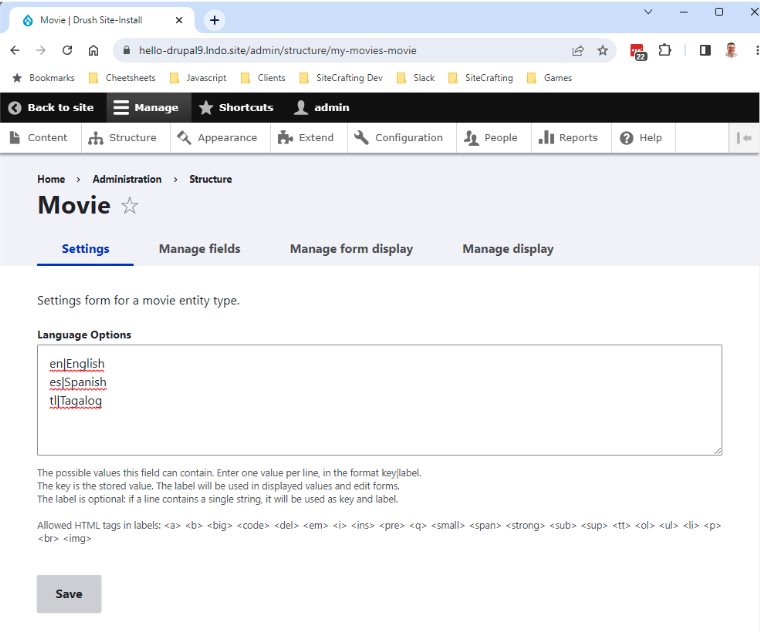
After installing the module, on the web application go to Administration → Structure → Movie. You should see the following page, with preloaded languages.
Manage a Movie
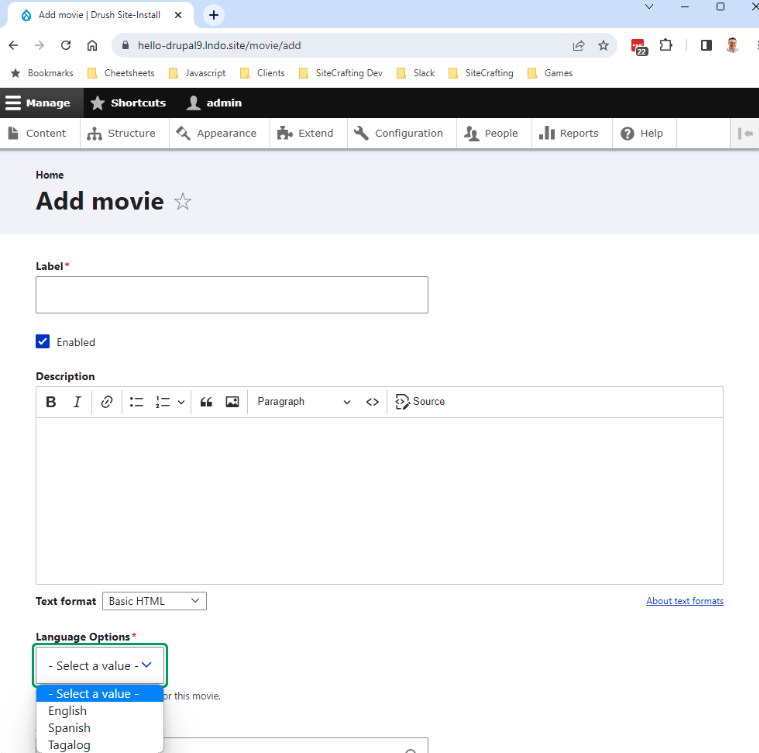
Now we’re ready to add a movie, with our language option! On the web application go to Administration → Content → Movies and click Add Movie.
The form should show a language drop-down field with our listed languages. Enter your fields and click save, success!
What’s Next
Adding XDebug and PHPUnit functional tests to make sure our module is working correctly.
Want to find out how to develop the best solution for your website? Connect with us.